What is Photo to Animal?
Use a photograph as the starting point for an animal-inspired portrait. Try it for a staff profile with a twist, with your own setting and a clear visual intention.

a playful visual story
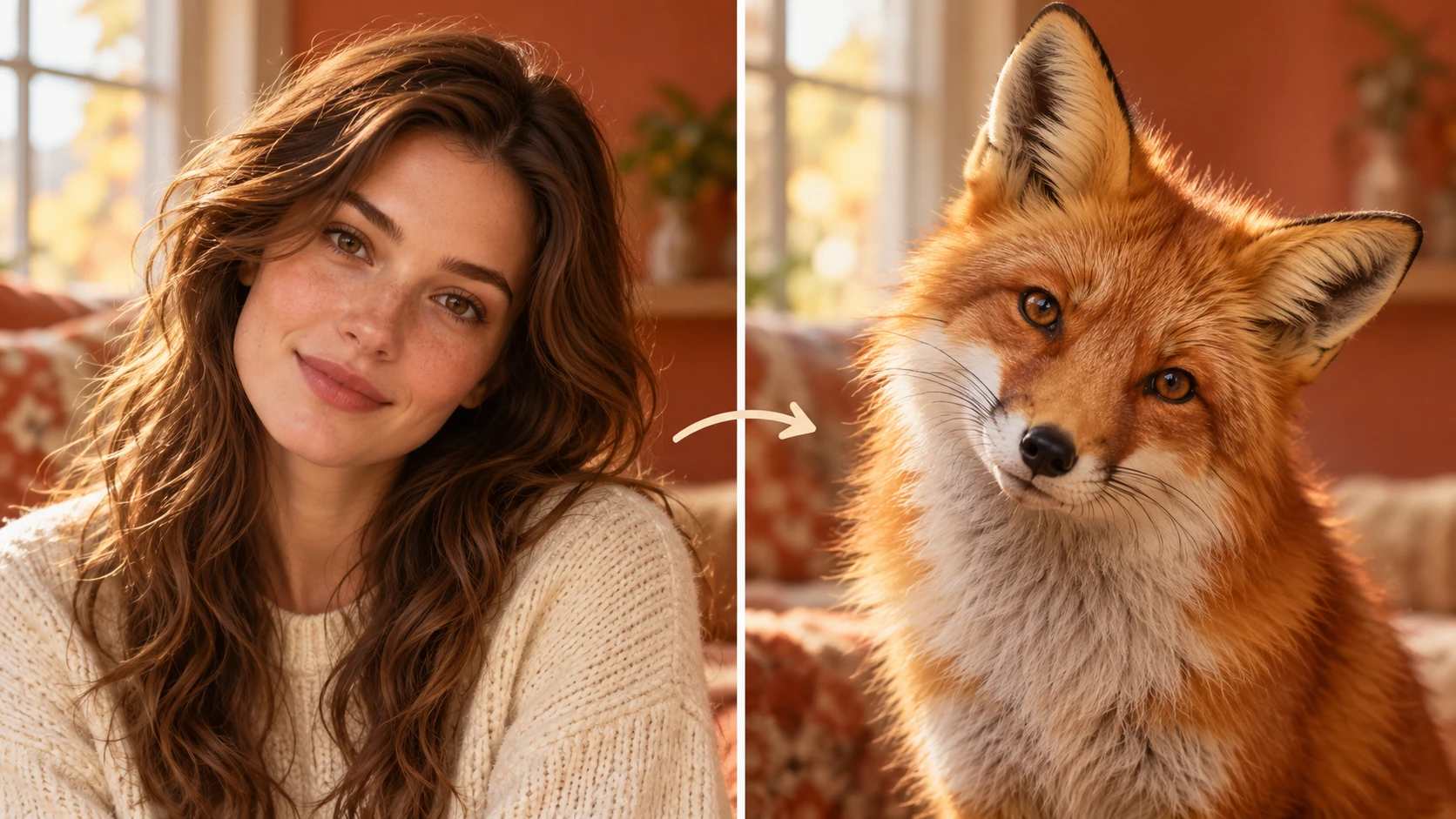
Use a photograph as the starting point for an animal-inspired portrait. Try it for a staff profile with a twist, with your own setting and a clear visual intention.
Choose Text to Image or Image to Image, prepare the matching inputs and describe one useful direction. Check the settings and quote, then submit and review the result in History.
Check your current account credits and the selected model’s access conditions. When the available balance covers the quoted job, you can generate without buying more credits.
Use a photograph with one clearly visible subject and a simple pose. A head-and-shoulders crop works well for facial expression.
Read the live credit quote for the selected model and settings before submitting your animal-inspired portrait. Preparing inputs or editing a description does not start a generation.
Follow the submitted job’s estimate and progress. The model, settings and queue affect waiting; History keeps the completed image available for review and download.
Use a photograph as the starting point for an animal-inspired portrait. Name a species, choose a visual style and describe the pose or expression worth retaining. On alice ai, approach it as a playful visual story: a distinctive expression and a memorable setting. Look for the idea you would enjoy sharing, then refine the detail that makes it yours.
Create a Photo to Animal portrait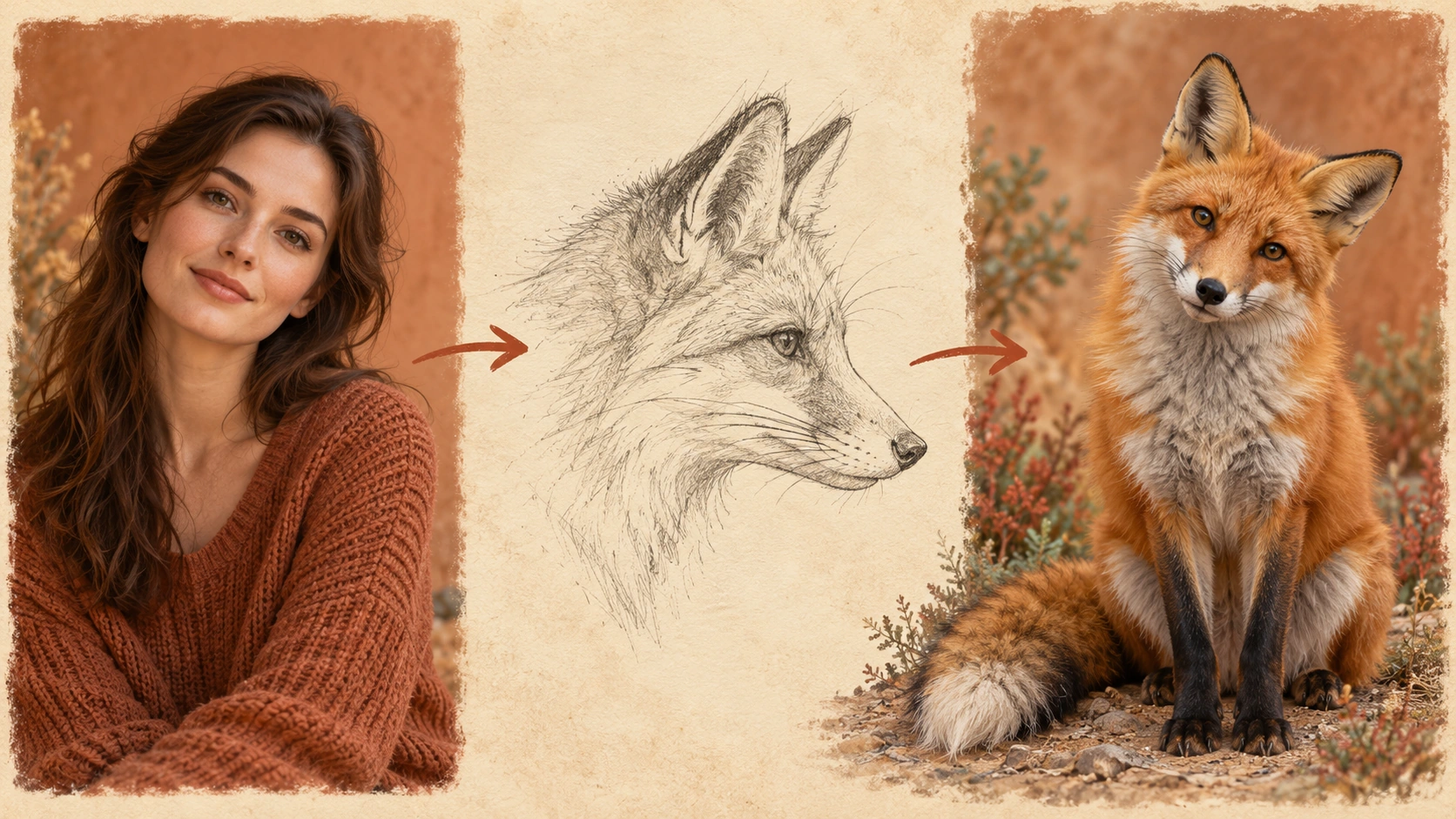
Choose the species in words and upload one clear subject photo in the matching photo mode. Use one subject per photo; group shots split the model's attention and weaken the portrait.
Type the animal you have in mind into the editable prompt. Describe the mood, lighting, and portrait style you want. Use the model controls to steer the result without piling on conflicting instructions. Keep the species and scene specific, and leave room for the uploaded photo to guide pose and expression.
The live credit quote appears before you run a job, so you know the cost up front. Sign in to your account, start the generation, and let it finish. Open History to compare versions, revisit earlier jobs, and decide which portrait is worth keeping for your post.
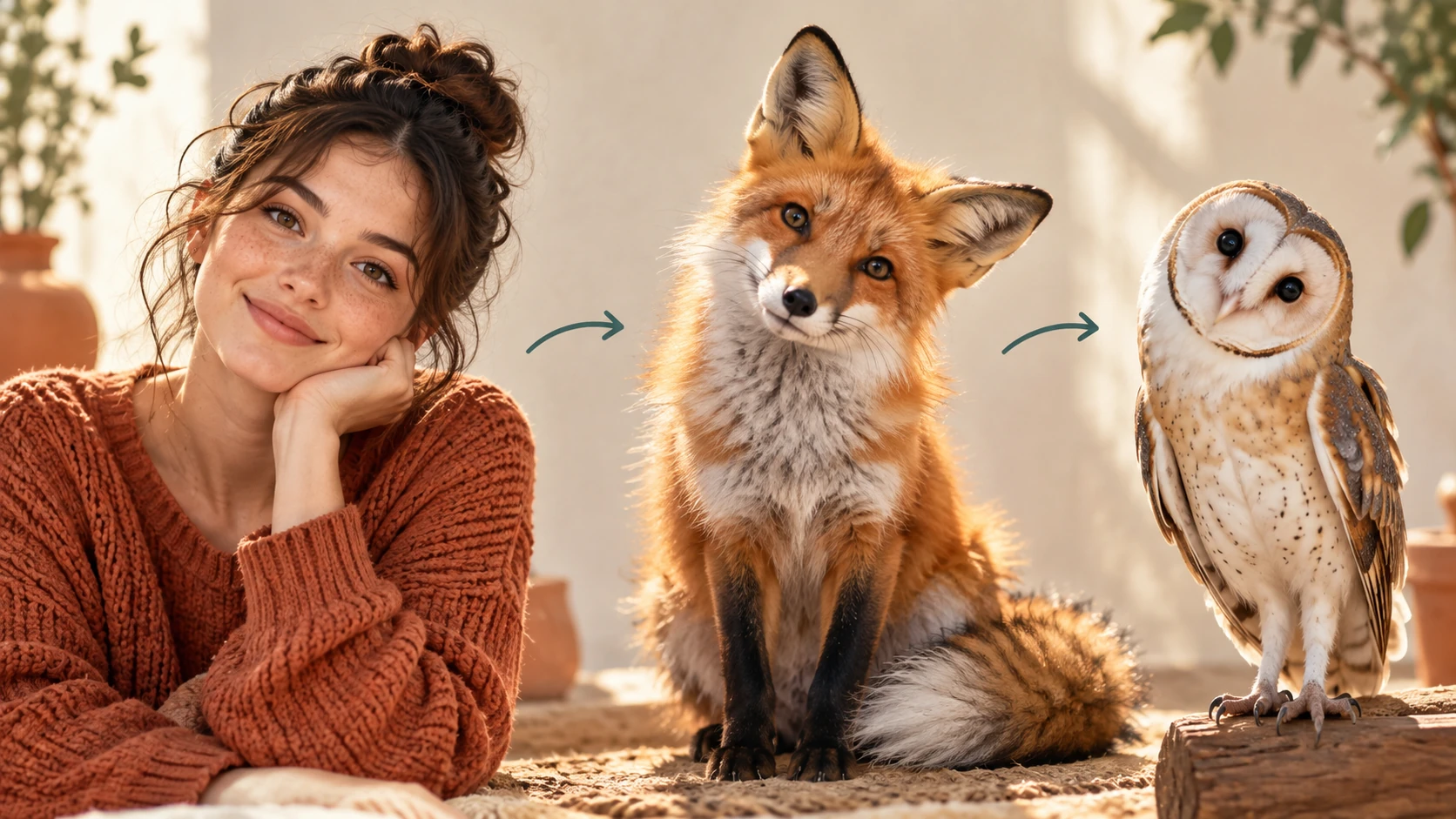
Pick a photo with one main subject. A sharp face, visible shoulders, and a readable pose give the portrait more to work with. Avoid crowded group shots and heavy motion blur. Crop distractions if needed before upload, and keep the expression you actually want the animal portrait to echo.
You are not locked into one animal. Change the species in the prompt and run another version while keeping the same source photo. That makes it easy to test a few directions for one social post without starting from scratch each time. Each attempt is a separate job in History.
The portrait aims to preserve recognizable visual cues from the photo, such as a tilted head, a direct gaze, or a familiar stance. It is an interpretation, not a guarantee, and results vary by photo and prompt. Clear, simple poses tend to read better than complicated ones.
The prompt box is editable, and the model controls let you shape the look before generating. Combine a named species with a short scene and a clear portrait style. Fewer, stronger instructions usually beat long lists. The live credit quote shows the cost before each job runs.
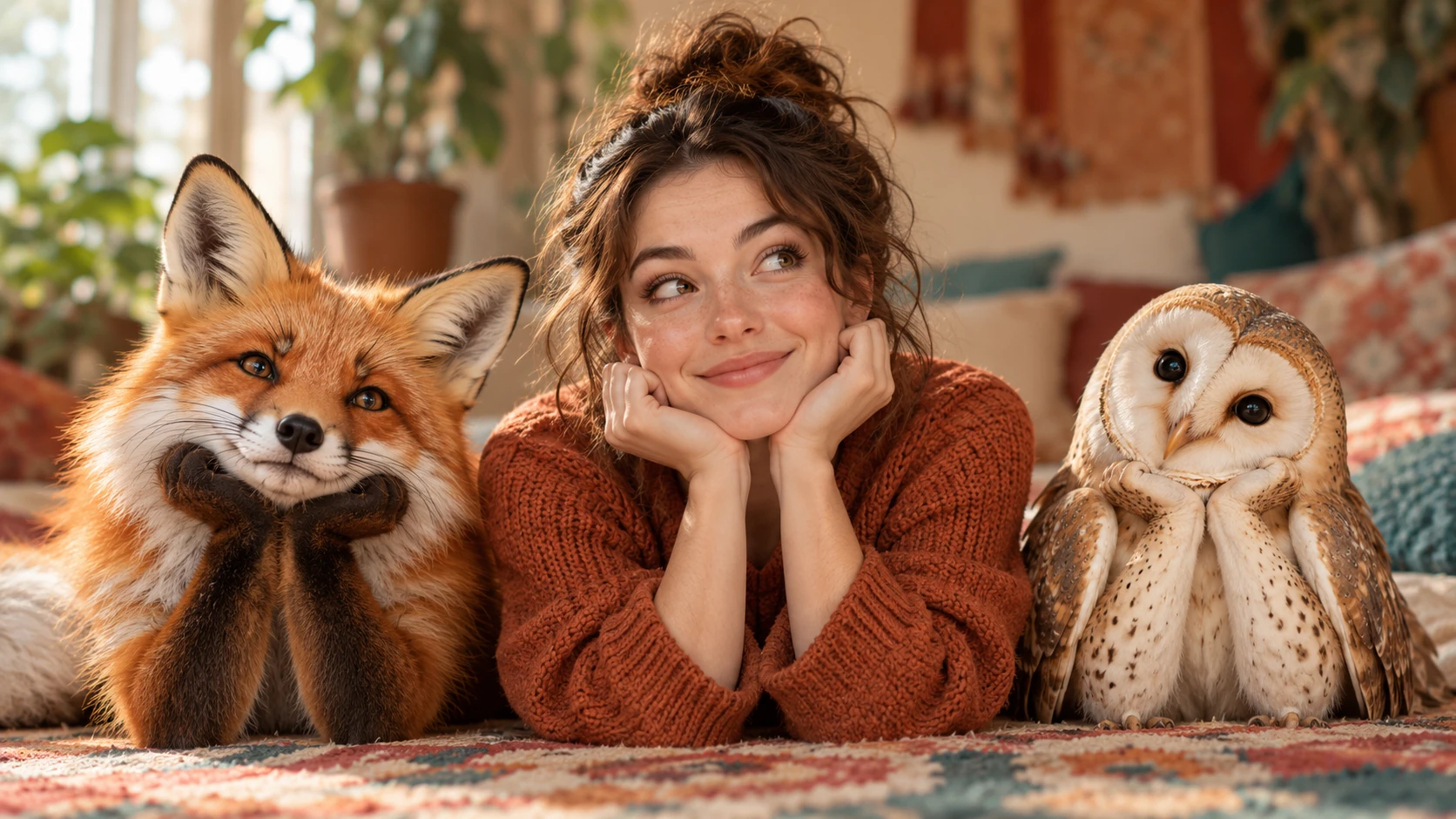
Take a clean headshot and turn it into a fox or owl portrait for a team introduction post. Keep the original expression so colleagues still recognize the person behind the animal styling.
Use a single portrait photo to announce a new pet-friendly office policy or a weekend event. Pick a species that fits the tone, then compare two versions in History before choosing one.
Turn one good photo of the birthday person into an animal-inspired portrait. Match the species to a running joke or a favorite creature, and let the preserved pose carry the humor.
It produces an animal-inspired portrait based on your uploaded photo and prompt. The result is a creative illustration, not a scientific or biological prediction. You choose the species, and the output interprets your subject rather than identifying an animal.
One clear subject with a visible face and readable pose works best. Sharp lighting and a simple background help. Busy group photos, heavy blur, and obscured faces give the generator less to preserve, so the portrait may drift from the cues you wanted.
Yes. The species sits in the editable prompt, so you can swap it and run another job with the same photo. Each run appears in History, which makes it simple to compare a fox version against an owl version before you pick one for your post.
It tries to preserve recognizable pose, expression, and visual cues where possible, but it is an interpretation rather than a copy. Results vary with the photo, species, and prompt. Treat each generation as a new portrait, and review a few versions before deciding.
Choose Text to Image for a new animal-inspired portrait made entirely from your description; it uses no uploaded reference. Choose Image to Image when one photo should guide the person, subject or composition. Select the mode first so the visible inputs match your intention.
You can prepare the animal-inspired portrait before submitting. To generate, check your signed-in account’s current credits and the selected model’s access conditions. If the available balance covers the displayed quote, you can proceed without buying more; no fixed free quota is promised.
Your animal-inspired portrait has a live credit quote based on the model and settings you choose. Check it before submitting. Editing the description or reviewing an idea does not start a job; submitting another generation creates a separately quoted attempt.
Use the estimate and progress shown for the submitted animal-inspired portrait job. Model choice, settings and queue conditions affect waiting. Check History for the completed image, and keep the existing task in progress instead of resubmitting the same request while you wait.
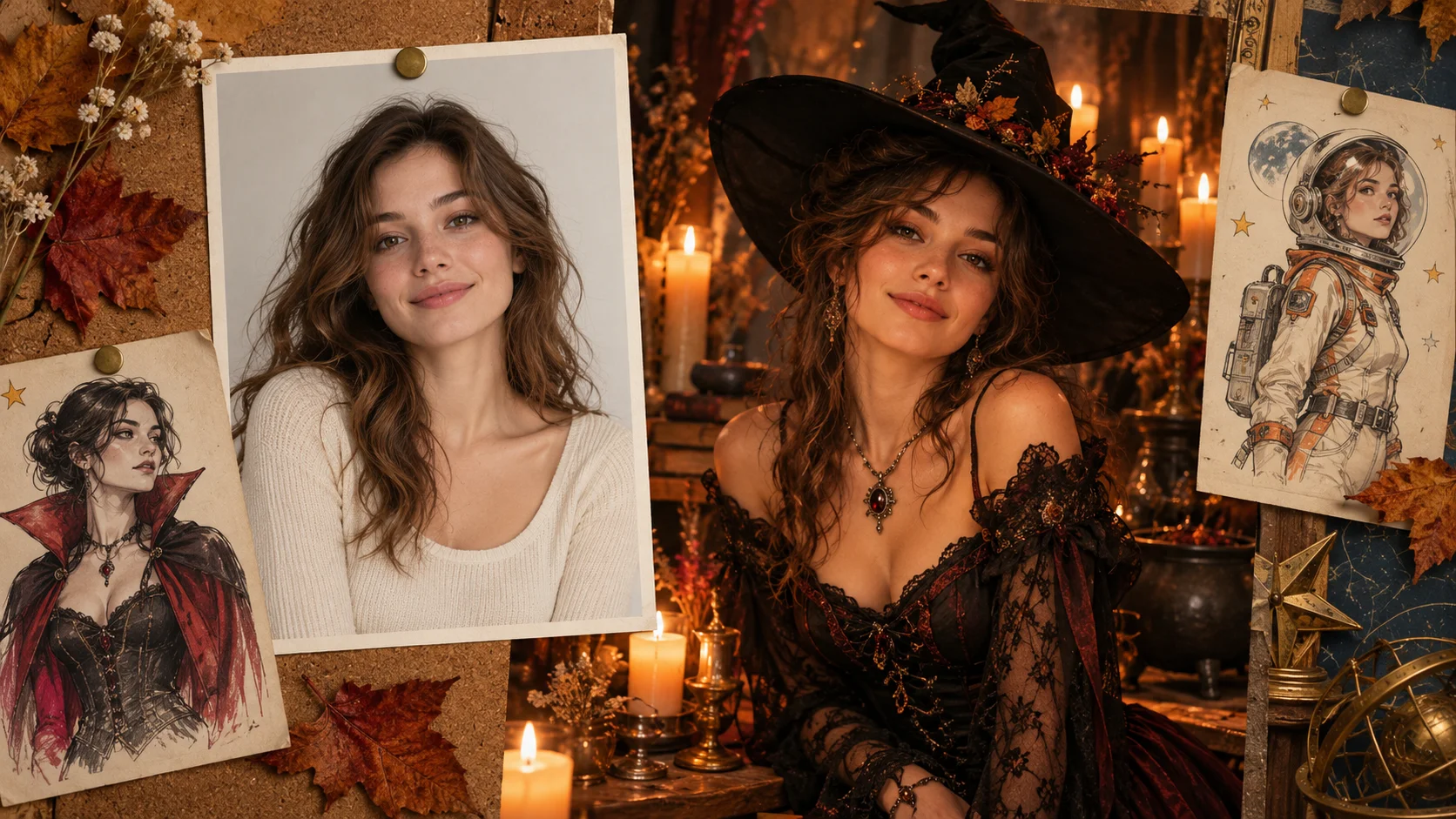
Explore AI Halloween Costume for a different visual direction. This guide explains its input, practical steps and the details to review.
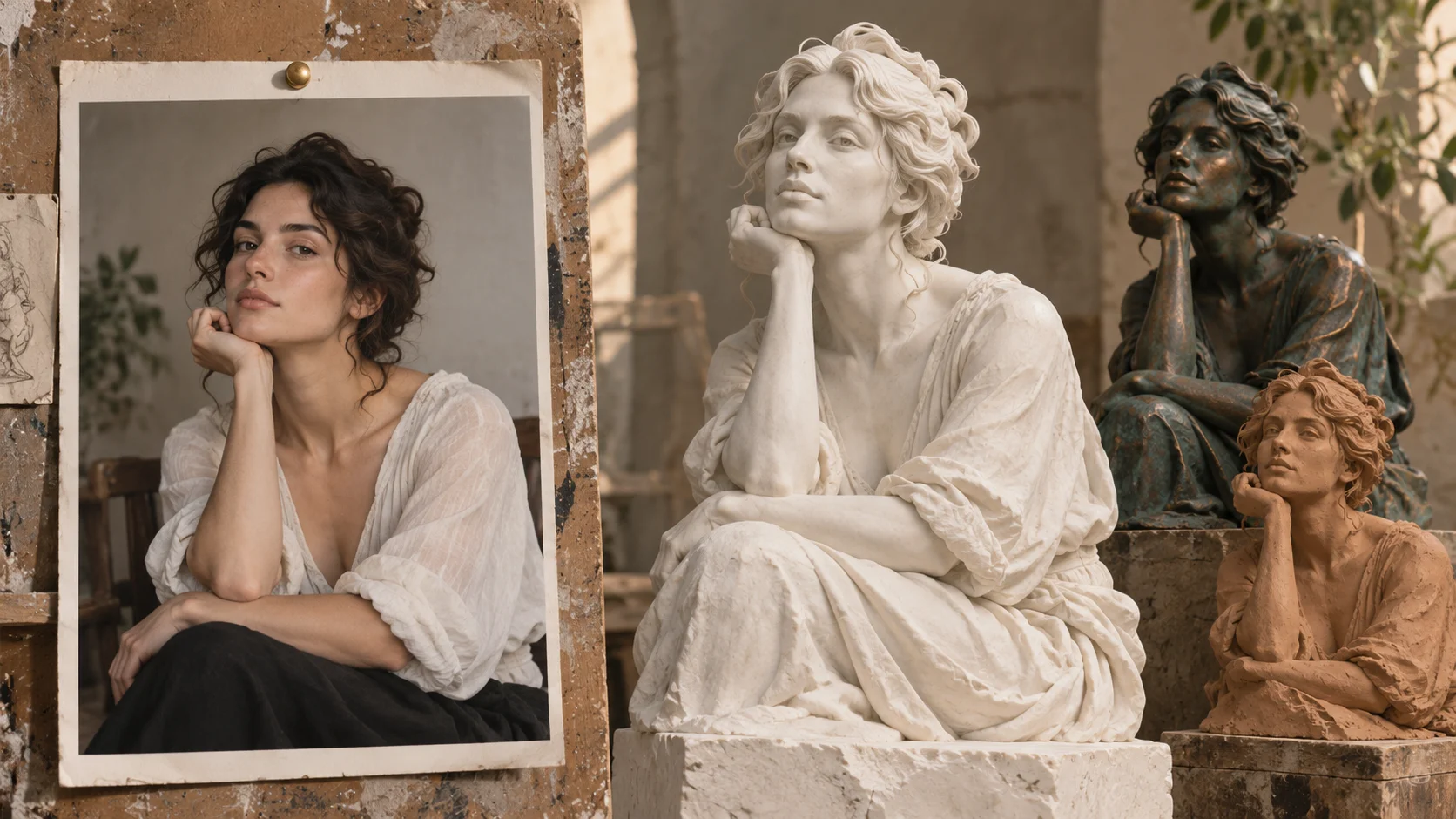
Explore AI Sculpture Filter for a different visual direction. This guide explains its input, practical steps and the details to review.
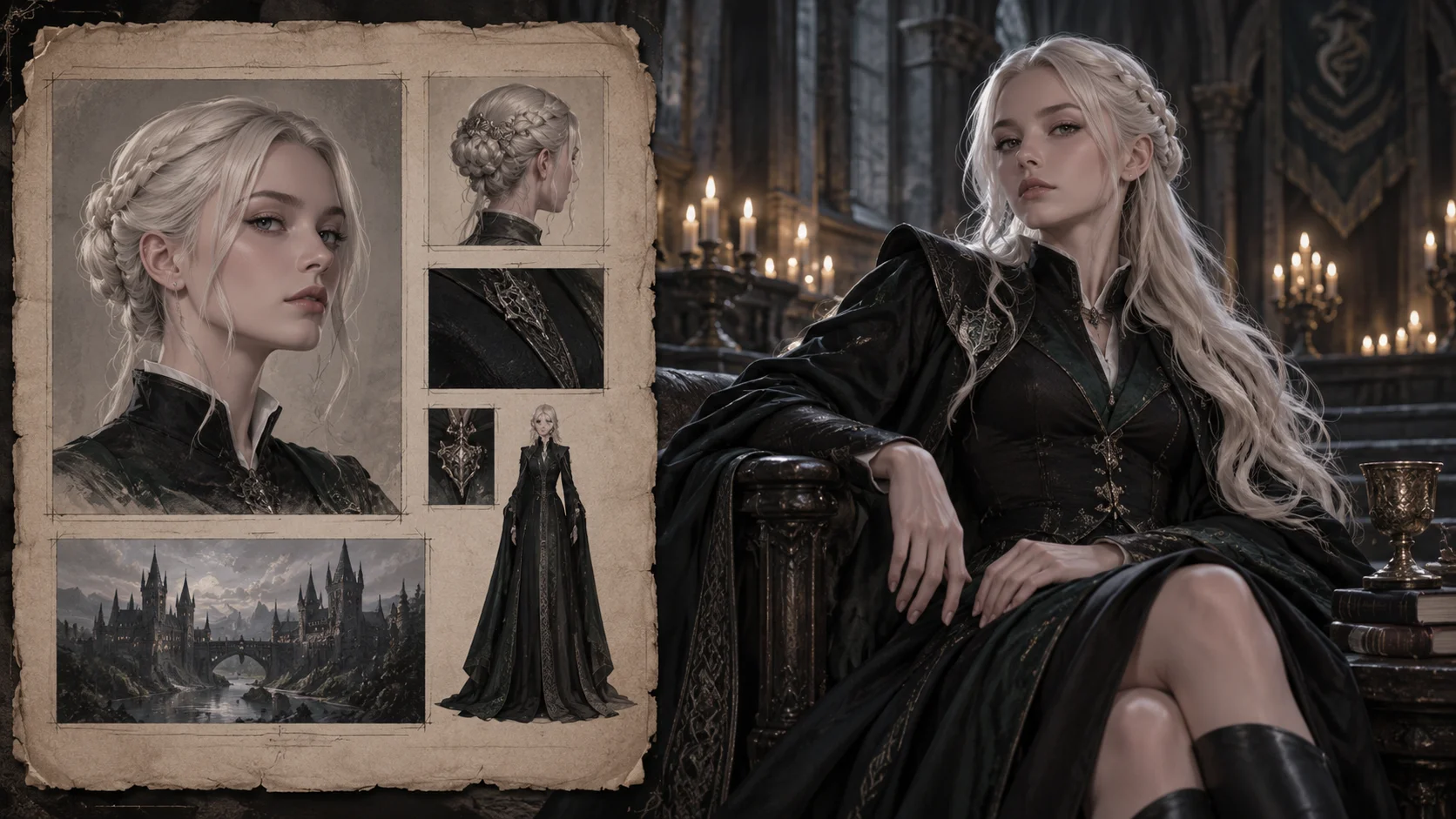
Explore Female Malfoy AI Generator for a different visual direction. This guide explains its input, practical steps and the details to review.
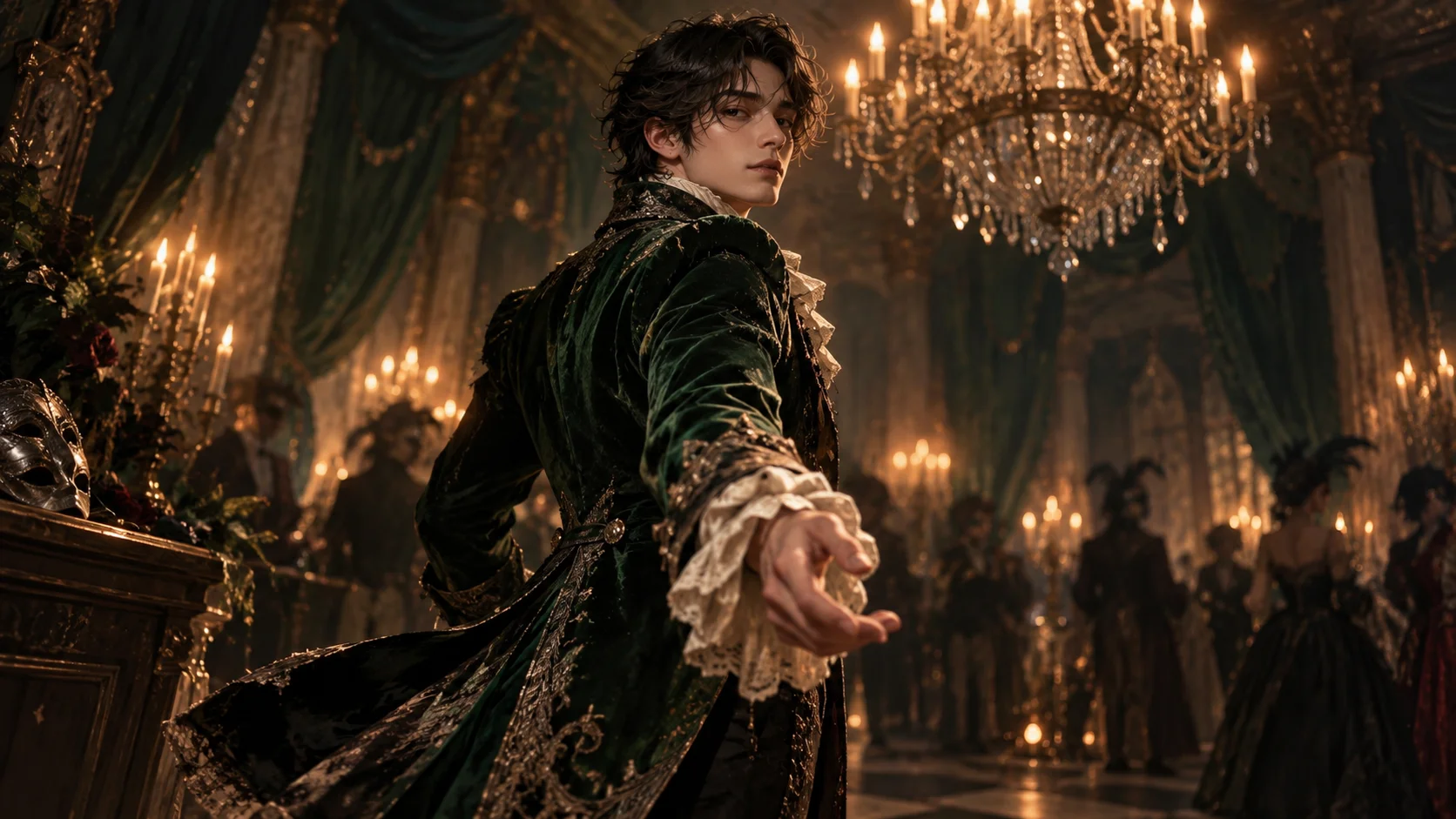
Explore AI Halloween Costume Transformation for a different moving scene. This guide explains its input, practical steps and the details to review.
Look for the idea you would enjoy sharing, then refine the detail that makes it yours. Prepare the animal-inspired portrait, read the current quote and submit when the direction is clear.
Create a Photo to Animal portraitaliceai.art · Updated